
How to Automate Tasks with ChatGPT or Claude: A Beginner's Guide
A beginner-friendly guide to choosing the right workflow, connecting your tools, and creating a scheduled task for work or life.


I keep hearing some version of the same thing from my friends and family: “I already use ChatGPT and Claude, and I want to automate more of my work, I just don’t know where to start.”
If that sounds familiar, this guide will walk you through building your first scheduled workflow.
AI workflows can use several different capabilities, depending on what the work requires:
Answering: Responding to your questions in ChatGPT or Claude.
Working with files: Reading, analyzing, and creating documents, spreadsheets, and other files.
Retrieving information: Gather information from the web or other connected sources like email and Google Drive.
Taking actions: Creating or changing something in another system.
Running automatically: Starting work on a schedule or trigger, completing the workflow independently or pausing for your approval.
These are building blocks, not sequential steps. This guide focuses on how to identify the capabilities a workflow needs and set it to run on a schedule.
Step 1: Map your process
Before deciding how to automate something, map what happens today. Think through each step in detail:
What is the trigger for you to do this task? Is it time-based, such as every Friday afternoon, or event-based, such as receiving an email or uploading a document?
Where does the work happen? Which systems does it involve?
What are the inputs? What information do you need, and where does it live? Be specific: your inbox, a connected app, Google Drive, or a folder on your computer.
What are you doing with that information? What do you review, compare, categorize, decide, create, or change?
What are the outputs? What does the process produce, and where should that result appear or be sent?
Identify exceptions: What changes when information is missing, duplicated, ambiguous, or unusual?
Identify reviews: Where is your judgment required? What should AI prepare for you to review, vs. what is safe for it to complete without your approval?
This may seem like overthinking it, but these details determine which tools and type of automation you need. They also help you identify:
Where you spend the most time in the process.
Which steps depend most on your judgment.
Which repetitive, low-risk steps are the best places to start automating.
Here’s an example of a process map for someone handling Customer Support issues at a software company:
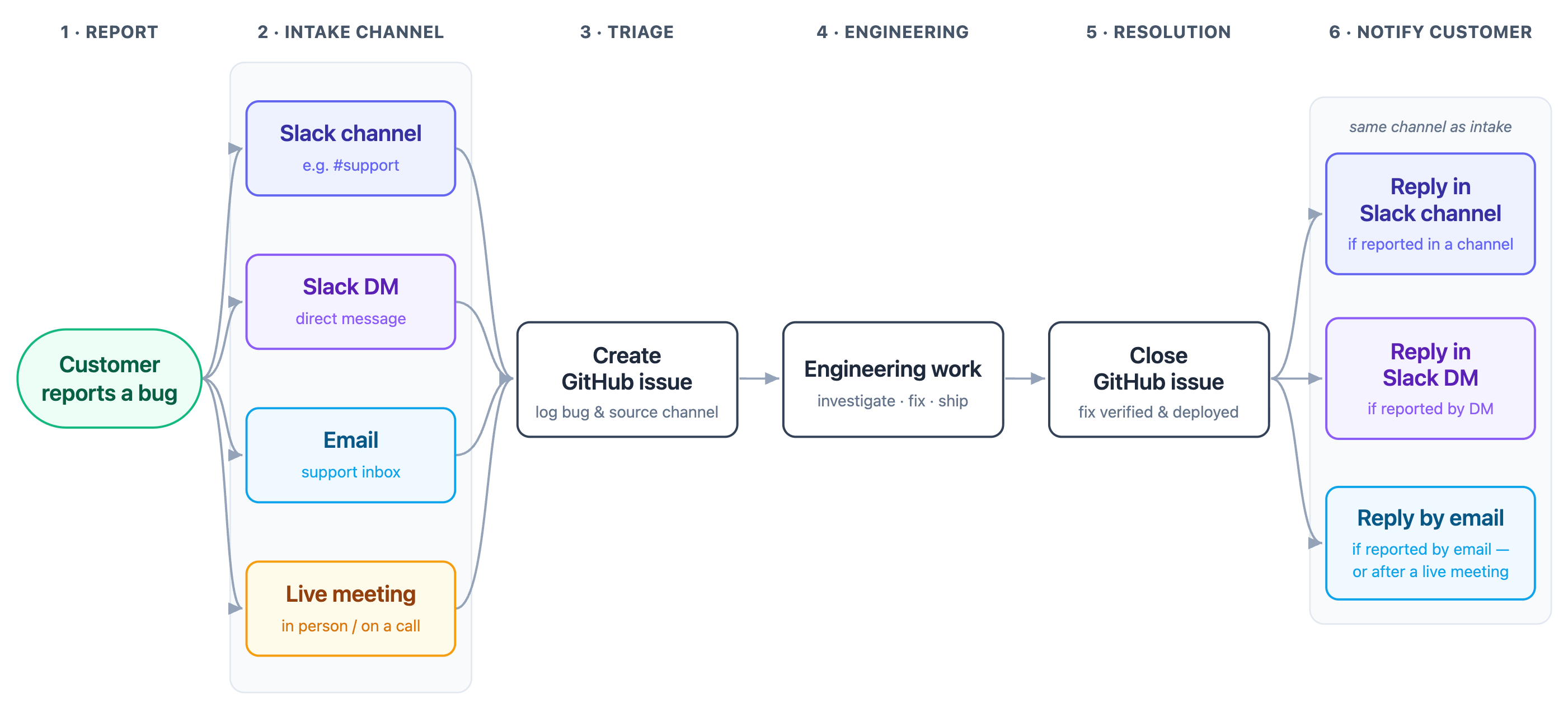
You don’t need to automate your entire process at once. Start with one tedious or time-consuming step that can produce value for you without creating much risk. Think about the tasks you find yourself doing repeatedly, either at work or in your personal life. If a task has a consistent set of steps, it may be a good candidate for automation. If you need inspiration, here are a few ideas:
Create a return-deadline tracker that searches order and return-confirmation emails and flags purchases approaching their return deadlines
Create a subscription monitor that finds upcoming renewals, trial expirations, annual charges, and announced price increases in email
Review your inbox and flag messages that appear to need a response
Turn meeting notes into tasks in a project management tool with owners and deadlines
Search project notes and messages for decisions that are still pending, along with owners and relevant context
Build your automation
Turn your process map into task instructions
Your automation needs instructions. Refer to your process map and describe what should happen in one complete run. At a minimum, specify the following:
The source(s): Which connected apps, accounts, files, or websites should the AI use?
The inputs: What information should the AI retrieve, and from what time period?
The work: What should it analyze, compare, categorize, create, or change?
The output: What should the result contain and where should it appear?
The exceptions: What should it do if information is missing, ambiguous, duplicated, or unchanged?
The review points: Which actions can it complete automatically, and which should pause for your approval?
You will add the task trigger later. For now, focus on describing what should happen each time the task runs.
Connect the systems your workflow needs
The AI needs access to the places where your information lives.
In ChatGPT, connected apps and reusable workflows are commonly installed through Plugins. Think of these like a toolbox for the app you’re connecting. For example, the Gmail plugin gives ChatGPT access to Gmail and may include reusable instructions for tools such as searching your inbox or drafting replies.
Open Plugins from the left navigation, find the application you need, click to install the plugin, and connect your account when prompted.
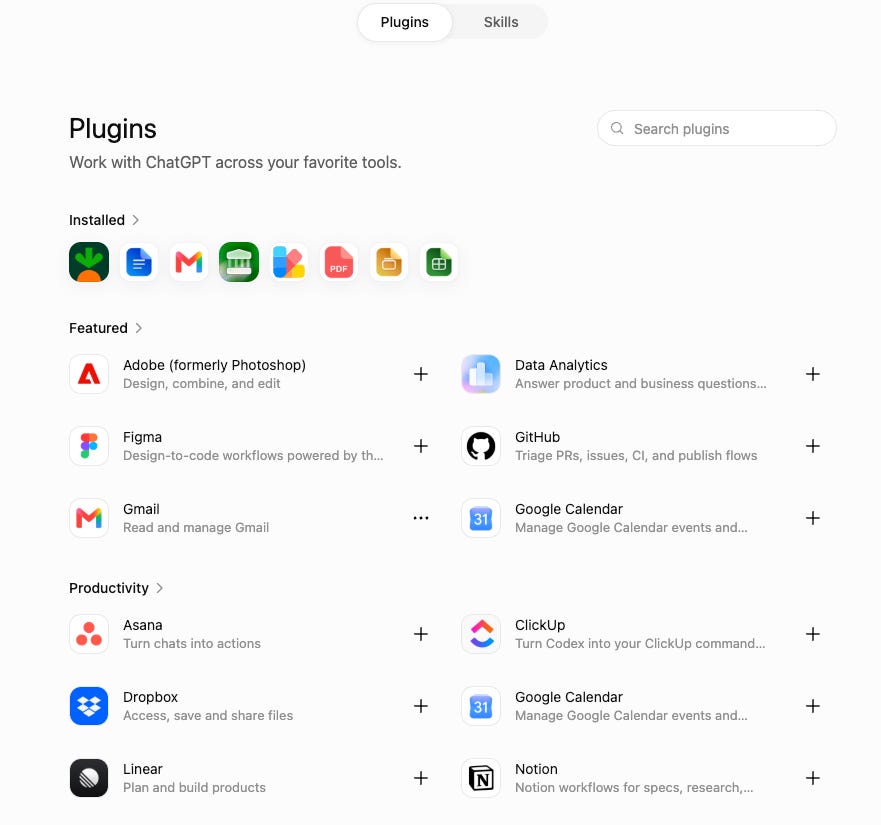
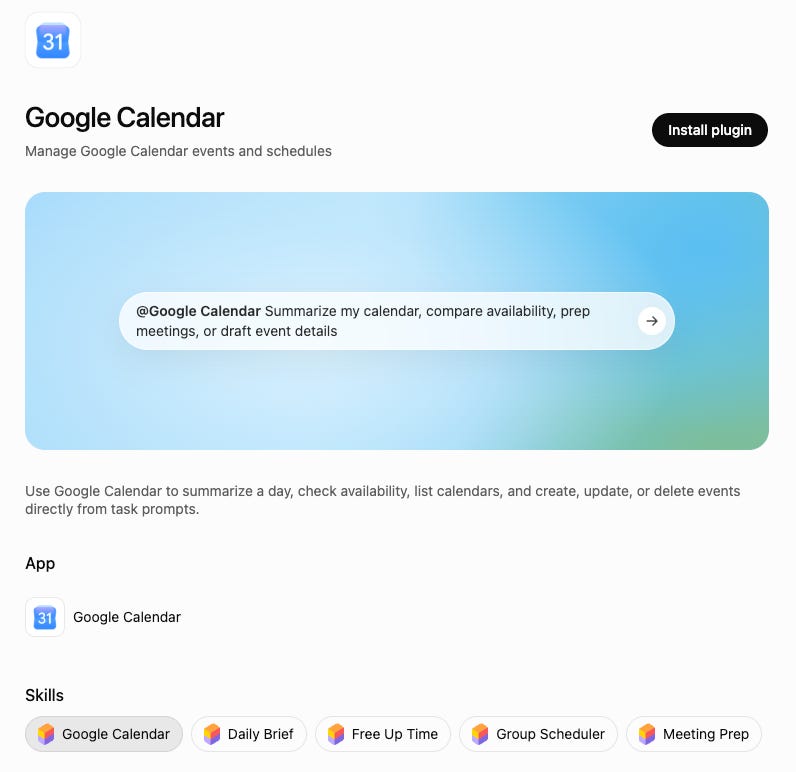
If you want to understand exactly what each plugin adds, you can open the plugin’s detail page and scroll to Skills. You can select any skill for more detail about the workflows it supports.
In Claude, the most direct way to connect an external application is through a Connector. Connectors give Claude tools for accessing and, when supported and authorized, taking actions in services such as Gmail, Google Drive, Slack, and Google Calendar.
Claude also offers Plugins, which can bundle connectors with skills and other workflow capabilities, but for the straightforward setup covered in this guide, start with Connectors.
Open Customize from the left navigation and select Connectors. Use the Add button to browse the Connector Directory, then Browse connectors to search for the application your workflow needs.
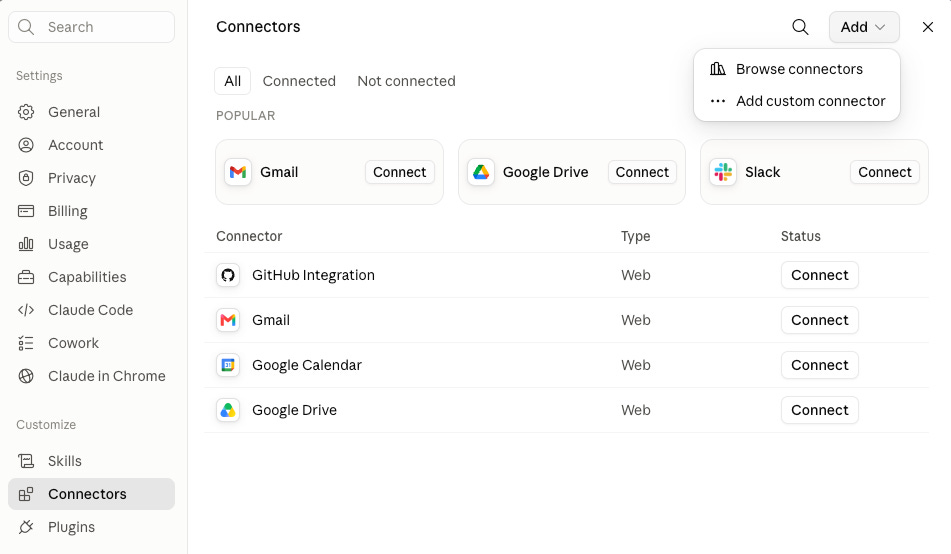
Open a connector to review its use cases and capabilities to see if it supports the information and actions your task requires. When you want to proceed, select Connect and follow the prompts to authorize your account.
Check what the connection can actually do
Just because ChatGPT or Claude can access a system doesn’t mean it can perform every action within it. Before building your workflow, confirm that the connection supports the specific information and actions your task requires.
If the application or capability you need isn’t available through a plugin or connector, the workflow may still be possible through a custom integration or automation platform. That is a more advanced setup I’ll address in a future article.
Determine whether the task needs local files or apps
You can manually upload an individual file through the ChatGPT or Claude apps in your web browser. However, if your task needs direct access to a folder, file, or application that only exists on your computer (and thus is not cloud based), then it must run locally through the ChatGPT or Claude Desktop apps. You will also need to grant them access to the relevant folder or application.
For a scheduled task that needs access to these local files or applications, your computer must also be powered on and awake, the ChatGPT or Claude Desktop app must be running, and the required files or applications must be available.
Is the workflow scheduled or event-triggered?
Look back at your process map. What triggers you to do this workflow? Does it begin at a predictable time, such as every Friday afternoon? If so, it can become a Scheduled Task directly in ChatGPT or Claude.
If your workflow should respond when something changes, such as an email arriving, a file being added to Google Drive, or a task status changing, a connected plugin may allow ChatGPT or Claude to check for that change on a schedule. However, the plugin does not necessarily notify the AI the moment the event occurs. If you need the workflow to begin immediately and the platform does not support that specific trigger, then you may need to leverage additional task-automation tools such as Zapier, n8n, or Make. This guide focuses on scheduled workflows, so I’ll cover those tools and event-driven workflows in a future article.
Test your workflow before creating the scheduled task
Before creating the scheduled task, run the workflow once in a ChatGPT or ChatGPT Work conversation, or in a Claude Cowork session. Provide the complete instructions and ask it to do one test run.
Confirm that it:
Accesses the correct sources and finds the intended information.
Performs the work and handles exceptions correctly.
Produces the output in a useful format.
Stops for your review where appropriate.
For workflows that send messages, modify records, or delete information, complete the first test in read-only or draft mode.
Revise your instructions as needed until the task completes as you would expect. Once it’s working, you can move on to scheduling the automation.
Schedule your automation
How to create a scheduled task in ChatGPT
You can create a scheduled task in ChatGPT in two ways:
From an existing Chat or ChatGPT Work conversation: The AI will already have context if you’ve been discussing the workflow in a conversation. You can ask it to return to this same thread and share its output there each time it runs the task. The downside is the conversation can become very long over time, making previous results harder to review. You can read more about scheduled tasks inside a chat here.
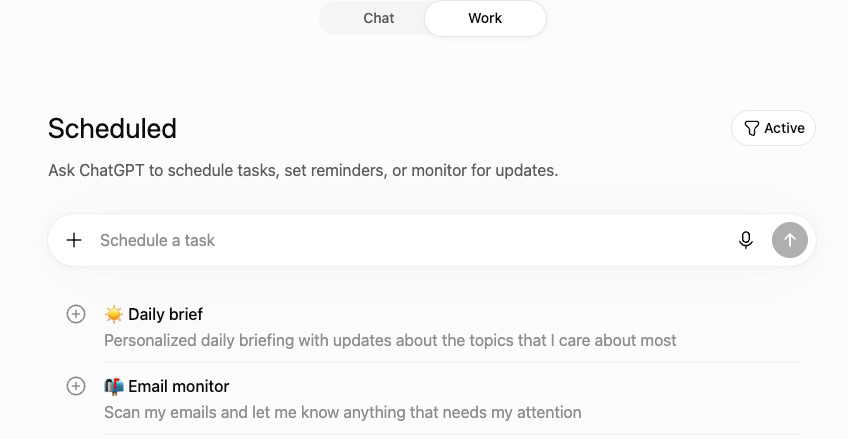
The Scheduled menu item in the left navigation: This creates a standalone task using self-contained instructions. Each run’s results will appear under Scheduled.
How to create a scheduled task in Claude
Select Scheduled in the left menu
Click New task
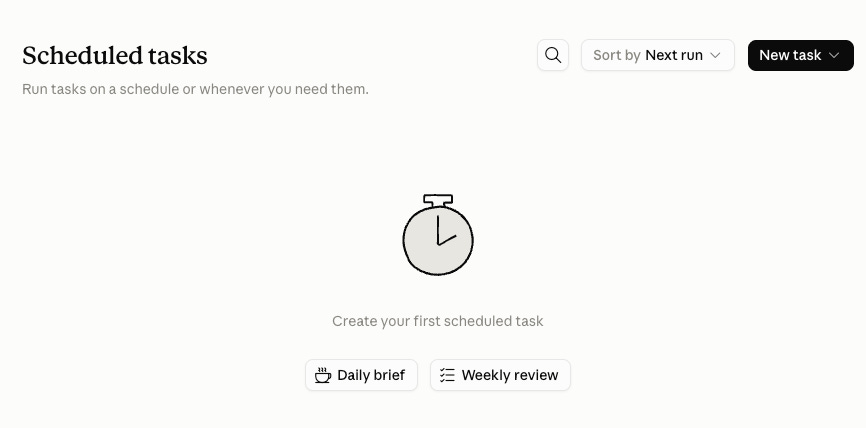
Choose Create with Claude if you want help translating your request into a task, or Set up manually if you already have your instructions written out.
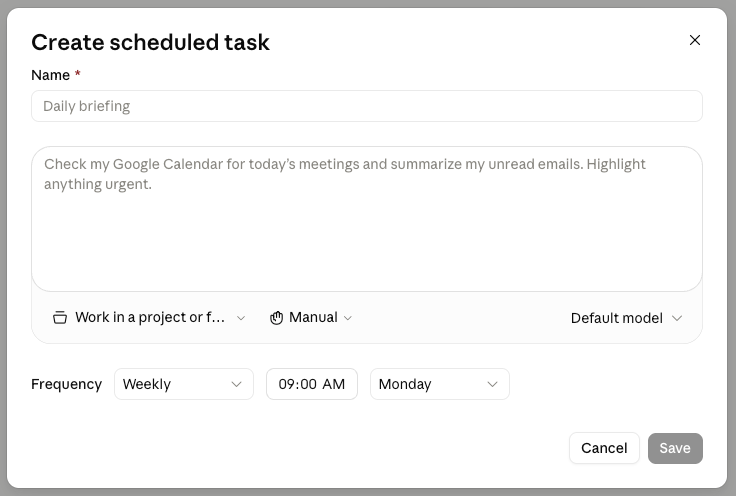
If you choose Set up manually, enter the task name, instructions, choose an approval mode, select the project, default model, and schedule. You can read more about creating Claude scheduled tasks here.
Refine the task after its first few runs
Even if the workflow performs well during testing, expect to refine it after a few runs. This is especially important when the task involves subjective decisions such as determining what is important, relevant, urgent, or worth including.
Make sure to give specific examples in your feedback such as:
If it leaves out useful information, define what it should prioritize, and why something was or wasn’t useful.
If it retrieves too much information, add clearer filters or a threshold for inclusion.
If the output isn’t organized the way you’d like, provide examples of a specific structure or template.
If it makes too many assumptions, specify when it should flag uncertainty or request your review.
For instance, asking AI to “find the most important updates from the newsletters in my inbox” leaves significant room for interpretation. You may need to define examples of what is “important” to you and what should be excluded.
Scheduled tasks are only the beginning
One of the first systems I’m building this way is a recurring briefing from newsletters and other sources I already follow. I want it to do more than summarize. I want it to connect ideas across sources, surface counterpoints, and turn what I’m reading into an evolving personal knowledge base that helps me go deeper into the topics I want to learn more about.
I’ll break down how I’m designing that system in a future post, along with more practical guides to AI skills and event-triggered workflows.
In the meantime, I’d love to know: What’s a process you repeat at work or in life that you suspect should be easier by now? What have you tried to automate that succeeded or didn’t quite work the way you expected?