

I’ve spent hours (realistically, probably days) scrolling, saving, and screenshotting variations of ‘cutest coffee shops in [insert European city here]’.” While planning a recent trip to Barcelona, I finally felt like I’d reached the end of my feed. I had finished TikTok. There were no more novel places to save.
I felt like I’d accomplished something meaningful, until I looked at the clock at 11:30 p.m., a few nights before my trip, and sunk into my couch realizing I still didn’t actually have an itinerary. In my defense, I had hastily made one dinner reservation at Glug, naturally at an hour my friend warned me only American tourists would be eating.
To be fair, I enjoy the research. It gets me excited about a trip and helps me get familiar with a city’s vibe. But I also do it because I don’t want ChatGPT to generate the same itinerary every other tourist received, where we file in a single line through the same churches and eat at the same packed tapas bars in the Times Square of every city.
Some of that is unavoidable. I fully expect to see the major sites. But I also want something that feels more “me.” I want to see local neighborhoods, find quieter spots off the beaten path. So, I sift through TikTok and other social feeds, even though the same bakery appearing on my feed twelve times may be a sign that I’m not quite as far off the beaten path as I think.
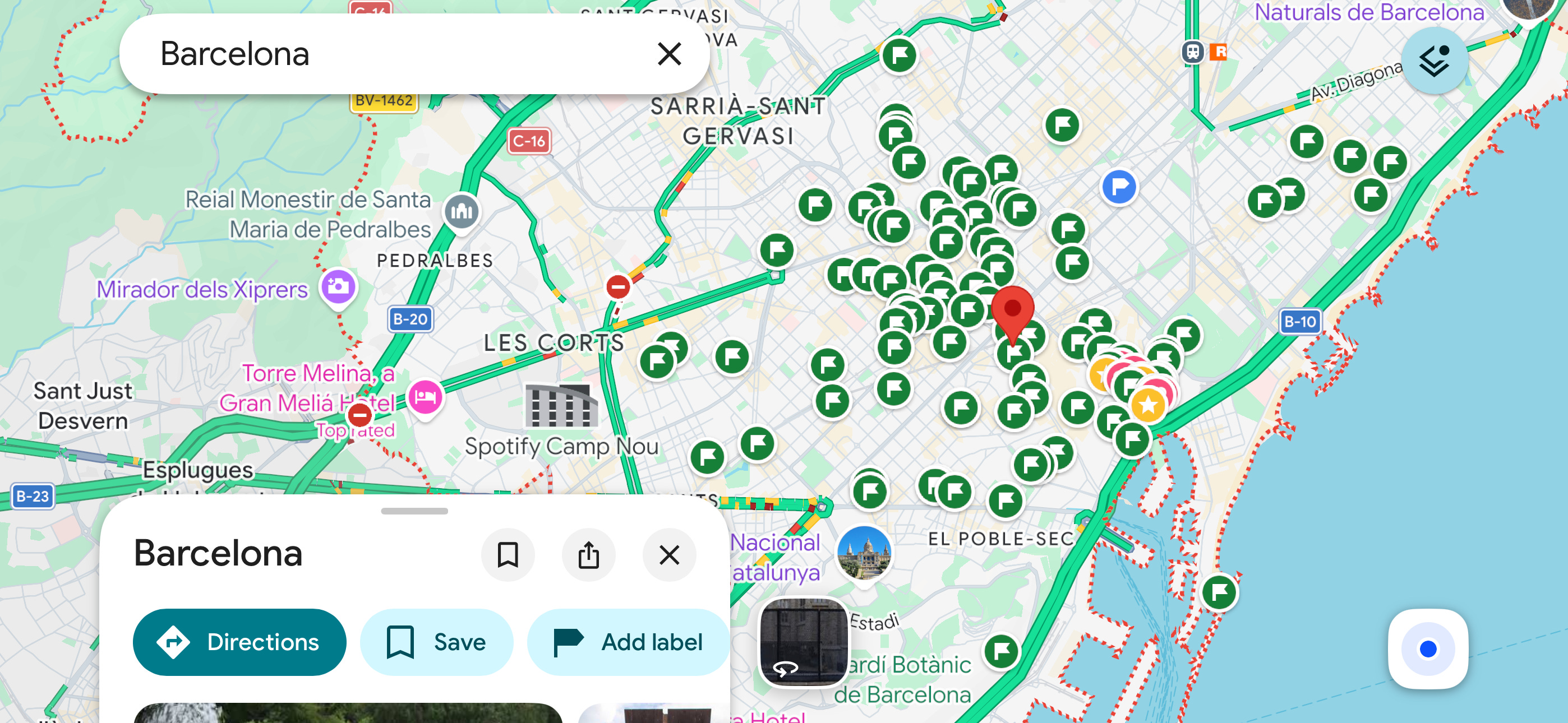
I stared at my Google Maps chaos. I had hundreds of pins in Barcelona, with no practical way to distinguish the museums from the coffee shops, croissants, dinner spots, and everything else. I couldn’t easily tell which pins were on my “must-see” list. Then of course I had to consider the factor of proximity to El Born, the neighborhood of my Airbnb.
I was sure AI could help me distill this, but first I had to get the data out of Google Maps. Pasting in a Google Maps URL and connecting my Google account hadn’t given the AI access to my private saved places. Claude pointed me toward Google Takeout, Google’s free data-export tool.
Exporting all 3,500 saved places gave the AI two different kinds of context. My Barcelona pins became the pool of places it could organize into this trip, while my favorite places from other cities helped it understand what I tend to like: walkable neighborhoods, excellent coffee, local bookstores, and places with a little eccentricity. Instead of asking AI to invent a Barcelona itinerary from scratch, I was giving it years of evidence about my taste.
Once I uploaded the files, it took about 30 minutes to group my Barcelona saves geographically, flag logistically awkward attractions, prioritize my remaining reservations, and build a five-day itinerary around my existing plans. Just as importantly, I had a reusable travel taste profile that could make future trips easier to plan.
How to export your Google Maps saved places
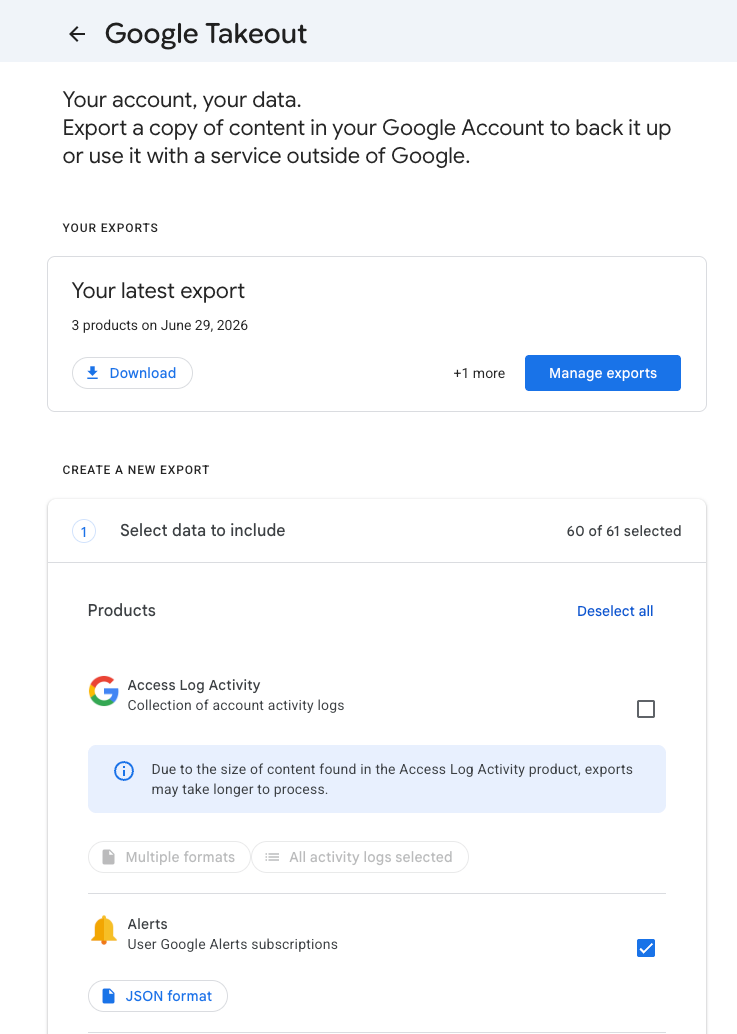
Follow the step-by-step below:
Click “Deselect All”
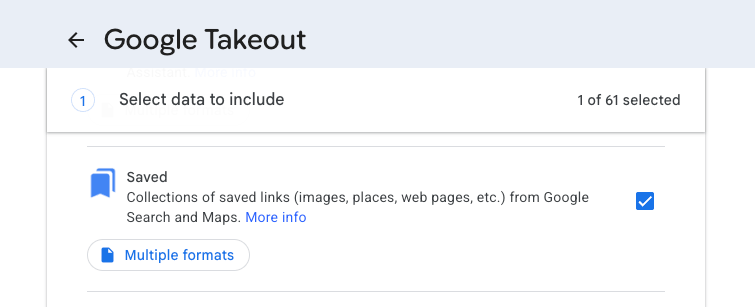
Scroll down and select “Saved”. This includes your Google Maps lists, such as “Want to go,” “Favorites",” and any custom lists you’ve created. One exception: If you use Google Maps’ starred places instead of saving them to lists, also select“Maps (your places)” since those starred places live in a separate file and won’t show up in the “Saved” list export.
Scroll to the bottom of the list and click “Next Step.”
On the next screen, leave the default settings: An email download link, a one-time export, and a .zip file. Click “Create Export.”
Google says the export can take anywhere from a few minutes to a few days, but mine arrived within several minutes.
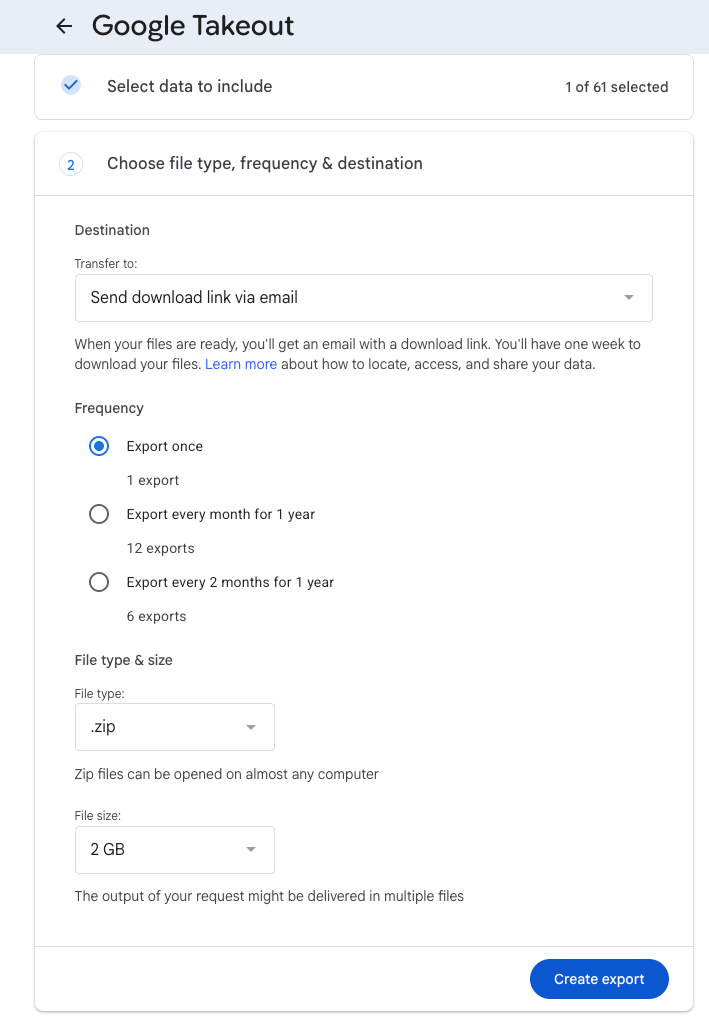
Check your inbox after a few minutes for the .zip file.
How to upload Google Maps saved places to ChatGPT or Claude
While you’re waiting for the export to arrive, create a dedicated Project in ChatGPT or Claude. A Project keeps your source files, relevant instructions, and planning conversations together.
Whenever you want to plan a new trip, you can just start a fresh chat in the same project instead of searching for an old chat conversation or re-explaining your basic preferences. In addition to the time savings, Projects are useful for a couple reasons:
With your Maps data added as Project sources, ChatGPT or Claude can use those files as shared context in each new chat you start within that Project.
This means you can start a separate chat for each trip instead of keeping one conversation going indefinitely. Your shared travel data remains available, while the dates, reservations, and decisions specific to each trip stay contained in a more focused thread.

Once the email arrives:
Download and unzip the export.
Open the subfolder titled “Saved.” Inside, you should see a separate CSV file for each of your lists, such as “Want to go” or “Favorites.”
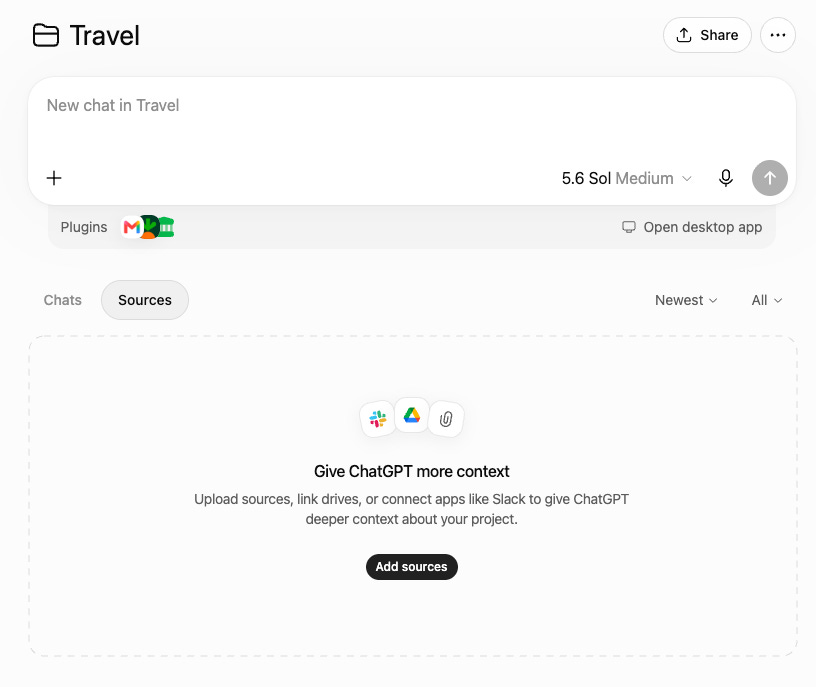
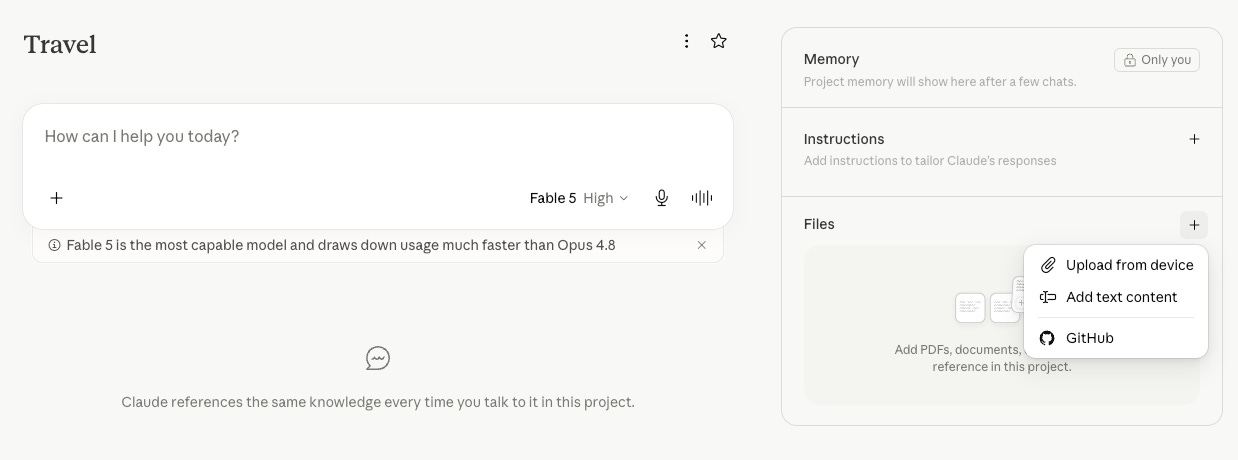
Select the Maps-related CSV files and upload them to your new Project. In ChatGPT, open Sources, select “Add sources,” and upload the files. In Claude, select the “+” beside Files and choose “Upload from device.”
If you also exported “Maps (your places)” to include starred places, locate and upload that JSON file as well.
How to create an AI travel taste profile
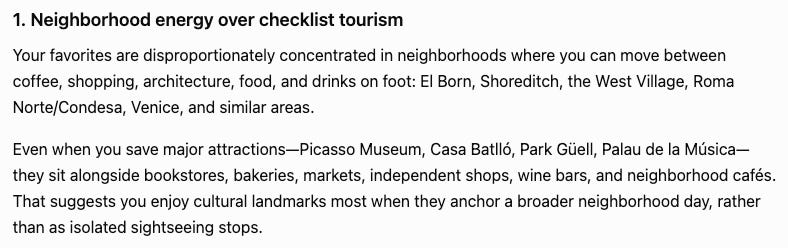
If your export contained a “Favorites” list, it’s worth first asking the AI to analyze your preferences and create a “taste profile” to get a sense of how well it will curate its recommendations for you and give it any initial feedback.
I used a prompt along these lines:
Analyze my saved places and create a travel taste profile that can guide this trip and future recommendations. Treat my “Favorites” list as the strongest evidence of places I genuinely like; treat “Want to go” and other aspirational lists as signals of interest, not proof of preference.
Identify patterns in:
The kinds of neighborhoods I gravitate toward
Atmosphere, design, and level of formality
Food, drink, shopping, and cultural interests
My apparent tolerance for crowds and traditional tourist attractions
Support each conclusion with examples from my saves, distinguish strong patterns from tentative inferences, and flag any contradictory signals. End with a short list of attributes that make a place more likely to match my taste—and the types of places you would be more skeptical of recommending.
Reviewing this profile before itinerary planning gave me a chance to correct anything it had misread. It also showed me whether the AI was identifying meaningful patterns or simply producing a flattering but generic description.
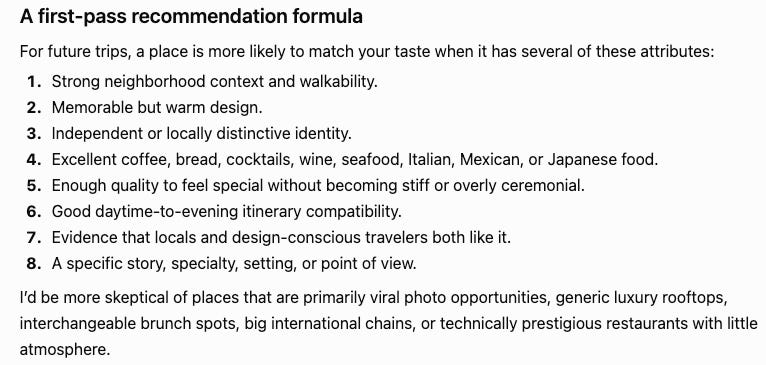
Once the profile felt accurate, I asked it to use those preferences along with my Barcelona saves and known schedule constraints to begin planning the itinerary.
How to turn saved places into a personalized itinerary
You can use a version of the following prompt to generate your itinerary:
Using my uploaded Google Maps saves and travel taste profile, create a first-pass itinerary for [destination].
My trip details:
Dates, arrival and departure times: [details]
Where I’m staying: [address or neighborhood]
Existing reservations or fixed plans: [details]
Must-sees versus nice-to-haves: [details]
Preferred pace and number of activities per day: [details]
Walking tolerance and primary transportation: [details]
Food, budget, weather, or other constraints: [details]
As you plan:
Group places geographically and minimize unnecessary backtracking.
Prioritize my saved places, but research additional options if there are important gaps.
Check current opening hours, ticket availability, likely crowd patterns, and the weather forecast when relevant.
Flag anything that needs to be reserved in advance.
Identify any must-sees that are logistically inefficient or unrealistic to fit.
Clearly label anything you couldn’t verify.
Before finalizing the itinerary, show me a rough structure, identify any conflicts or tradeoffs, and ask the follow-up questions you need answered.
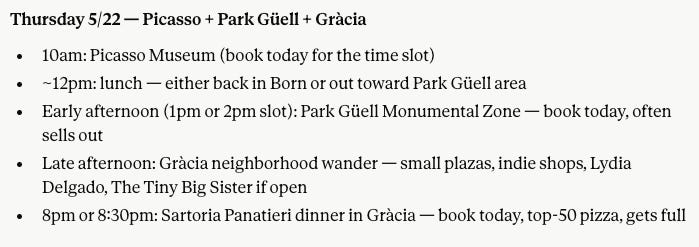
Claude responded with a rough structure rather than jumping directly to a rigid hour-by-hour itinerary. It flagged places that were geographically awkward, asked whether I cared enough about them to justify the detour, and separated the reservations I needed to make immediately from places I could approach more spontaneously.
It also noticed details I hadn’t explicitly explained, like the lone running store among my saves, and asked whether I wanted to make time for a run during the trip.
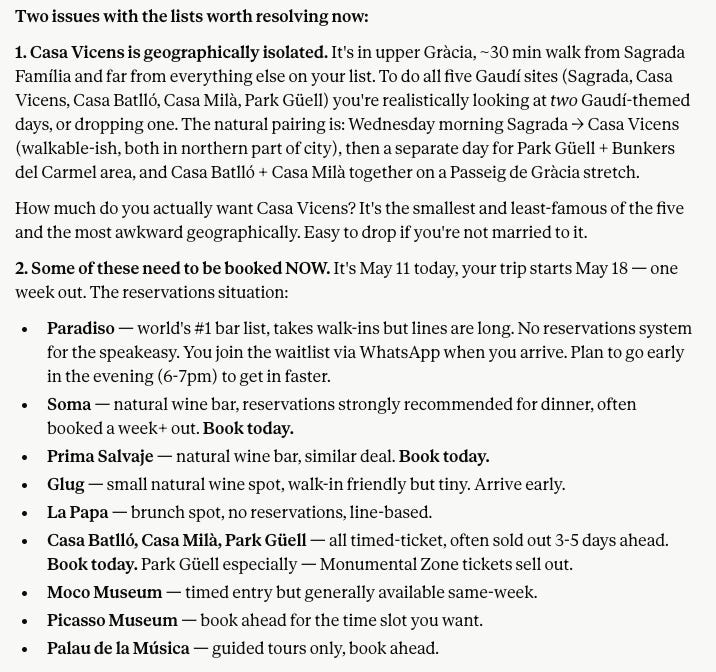
I refined the draft through a few short follow-ups: which afternoon I wanted to leave open, which walking tour I preferred, and which sites I was willing to cut. This is where I wanted to spend my planning time, not evaluating every scheduling possibility, but making the tradeoffs that required my judgment.
From uploading the files to having a workable first draft took about 30 minutes. The itinerary still required my input and verification, but it replaced several hours of manually sorting pins, comparing neighborhoods, calculating the time to get between sites, checking booking requirements, and deciding what could realistically fit.
The surprising part was that the “Saved” export didn’t include separate geographic coordinates. It did include place names, addresses, and Google Maps links, which Claude could use, along with live research, to infer which places belonged in the same neighborhood. That was enough to produce a geographically sensible first draft rather than an itinerary that required me to cross the city repeatedly.
Why this works better than asking AI to plan from scratch
A generic AI-generated itinerary is only as personalized as the information you give it. I could spend 20 minutes explaining that I gravitate toward excellent coffee, quieter neighborhoods, independent shops, and restaurants that feel special without feeling overly formal. Or I could give it years of saved places that already demonstrate those preferences.
I still need to provide the constraints specific to this trip: My dates, walking tolerance, existing reservations, and how much unscheduled time I want. But I don’t have to translate years of taste into a collection of adjectives every time I plan somewhere new.
This doesn’t necessarily mean the AI uncovers “better” places than Google Maps, Tripadvisor, or a travel website. The improvement isn’t primarily in the discovery; it’s in the synthesis. It can turn hundreds of possibilities into a geographically coherent plan, identify what needs to be booked, and help me assess the tradeoffs when everything won’t fit.
It also changes where I spend my planning time. I used to sift through a spreadsheet, calculate transit times, determine how much could comfortably fit into a day, and research the best time to visit each attraction. Now I can focus on the decisions that actually require my judgment: whether I care enough about a particular site to cross the city or whether I’d rather prioritize a low-key dinner over squeezing in another museum.
Plus, since my saves and taste profile live in a dedicated travel Project, that context doesn’t disappear or get forgotten after Barcelona. I can refine it with feedback from my trip and use it as a better starting point for the next one.
Can you trust AI-generated travel recommendations?
It depends on what I’m trusting it to do. I trust AI to help organize my saves, identify patterns, surface logistical conflicts, and produce a strong first draft. I don’t treat it as the final authority on information that can change in the real world.
A saved-places export is only a snapshot. Restaurants close, opening hours shift, timed tickets sell out, and reservation policies change. Even when the AI conducts live research, it can misread an outdated page or present an inference with more confidence than it deserves.
Before finalizing the itinerary, I check official booking pages, current opening hours, reservations, ticket availability, and the final routes in Google Maps myself.
How to improve your taste profile over time
The itinerary saved me time once. The taste profile is the part that can become more useful after every trip, so I saved a concise version of it as a reference source in my travel Project.
I’m improving it over time by:
Sharing brief feedback on what I loved, disliked, or found overrated and why. For example: “This day was theoretically walkable, but four scheduled stops left me exhausted that day.”
Asking the AI to revise the taste profile based on that feedback, then replacing the old reference with the updated version.
Uploading a fresh Google Maps export after a significant round of saving or before planning a trip for which I’ve added many new places.
I’d love to tell you I’ve stopped saving coffee shops in cities I’ve never visited at 11:30 p.m., but if anything, I’m saving more of them. The difference is that those saves now feel less like digital hoarding and more like actual inputs into my next trip.
Your past self already did the research. She just needed better tools to make it useful. The active setup is only a few minutes of checkboxes and uploads, while the payoff is finally being able to use years of accumulated saves.
Google Maps was the easy export. I haven’t yet solved what to do with all the Instagram saves, TikTok videos, and camera-roll screenshots I’ve accumulated, but this experiment is one example of the larger idea I’m building toward.
The Smart Girl Stack is where I test how AI can help us create more intelligent systems for everyday life so we can learn faster, work smarter, improve our finances, take better care of ourselves, and spend more time on the things we actually enjoy. Subscribe to see what works and what ultimately earns a place in my stack.
FAQ
Can you export your Google Maps saved lists?
Yes, through Google Takeout, Google’s free data-export tool.
Can ChatGPT access my Google Maps saved places directly?
Not through ChatGPT’s native Google connections. As of July 2026, connecting Google Drive or your Google account does not give ChatGPT access to your private Maps saved lists. A shared Maps URL may expose some public information, but it isn’t a reliable way to import an entire collection. The most reliable method I found is to export the lists through Google Takeout and upload the resulting files to a ChatGPT or Claude project.
Does the Google Maps export include coordinates?
Not in the “Saved” CSV files I exported. They contain place names, addresses, and Google Maps links, but no latitude and longitude fields. AI tools can often resolve those places and determine which neighborhoods they’re in using the names, addresses, and live research.
What’s the difference between the “Saved” export and “Maps (your places)”?
“Saved” exports your lists as CSV files, which is primarily what you want for this workflow. “Maps (your places)” exports a JSON file containing your starred places, which don’t appear in the “Saved” list export. If you tend to star places, export both “Saved” and “Maps (your places)”.
How do I organize hundreds of Google Maps saved places?
After exporting the data, upload the CSV files to a dedicated travel Project and ask the AI to analyze it. The goal isn’t to create a perfectly organized spreadsheet of all your saved places, it’s to make the relevant saves usable for this specific trip.
Do I need to upload a new export before every trip?
That’s up to you. Your existing files will still be there for the future. I’d upload a fresh export if you’ve saved a significant amount of new places for an upcoming trip, so that the AI has the latest.